FREE SETUP GUIDES
Get it working right
the first time.
No jargon, no forum rabbit holes, no three-hour troubleshooting sessions. Every guide here is written for the person setting up their first handheld or emulation device — clear steps, plain language, real results.
DIFFICULTY LEVELS
BEGINNER
No prior experience needed. Clear, step-by-step, nothing assumed.
Intermediate
You've set up a handheld before and want to go further.
ADVANCED
Firmware tweaks, custom configs, and deeper system tuning.
START HERE
New to retro gaming or emulation? Read these first.
Four guides that answer every question a first-timer usually has, in the right order.
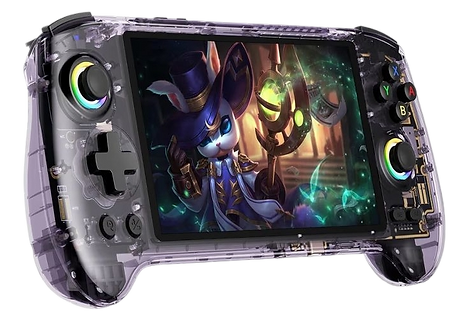
BEGINNER
EMULATION BASICS
What is Emulation? A Complete Beginner's Guide
What emulation actually means, why it's legal to own the software even without the original disc, how emulators and ROMs are different things, and which setup path makes the most sense for what you want to play. Start here before buying anything.
What you'll learn
How emulation works and what you actually need
How emulation works and what you actually need
How emulation works and what you actually need
How emulation works and what you actually need
UPDATED JUN 2025


FULL WALKTHROUGH
Batocera Setup Guide — Zero to Playing
The most common setup we help people with. Follow these steps in order and you'll have Batocera running and configured in one sitting.
Batocera: Install, Configure & Play
A complete walkthrough from downloading Batocera to playing your first game. Estimated time: 45–90 minutes depending on your internet connection and SD card speed.
BEGINNER
1
Download Batocera
Head to batocera.linux and download the image file that matches your device (e.g. RG35XX, RG405M, or PC). You'll get a compressed .img.gz file — don't extract it yet.
Tip: Make sure you download the version labelled for your exact handheld model, not the generic PC build. Each has a dedicated device image.
2
Flash the Image to Your SD Card
Download and install Balena Etcher (free, works on Windows/Mac/Linux). Open Etcher, select your downloaded Batocera image, select your SD card as the target, and click Flash. This takes 10–20 minutes depending on card speed.
Important: Etcher will wipe everything on your SD card. Make sure you've selected the right drive — not your desktop, downloads folder, or an external hard drive.
3
Boot Into Batocera
Insert the flashed SD card into your handheld (or SD card slot for PC). Power on. The first boot takes 2–3 minutes as Batocera expands its partition — this is normal. You'll see a Batocera splash screen, then the main menu.
Tip: If nothing happens after 5 minutes, hold the power button to force-off, remove and re-seat the SD card, and try again.
4
Configure Your Controller
On first boot, Batocera will prompt you to map your controller buttons. Hold any button to start the mapping process. Go through each prompt — D-pad directions, face buttons (A/B/X/Y), shoulder buttons, start and select. Take your time — you can redo this later under Main Menu → Controller Settings.
5
Add Your Games
Connect your handheld to your computer via USB or insert a second SD card. Batocera creates a ROMS folder with subfolders for each system (nes, snes, gba, psx, etc). Place your legally-owned game files in the correct system folder. Back in Batocera, press Start → Game Settings → Update Game List.
Tip: File format matters. GBA games go in the /roms/gba/ folder and use .gba files. PS1 games go in /roms/psx/ and use .chd or .bin/.cue format.
6
Download Box Art & Metadata (Optional but Recommended)
Batocera can automatically pull box art, descriptions, and ratings for your games. Go to Main Menu → Scraper → Scrape Now. This connects to ScreenScraper.fr (free account required) and adds cover art to every game in your library. Makes the whole experience feel like a premium frontend.
7
Adjust Your Display & Audio Settings
Go to Main Menu → System Settings → Video Settings to adjust resolution and integer scaling (keeps pixel art sharp). For audio, System Settings → Sound Settings lets you set volume and output device. If you're using a TV via HDMI, set output to HDMI here.
Tip: Enable "Integer Scaling" for pixel-perfect retro graphics. It adds black bars on some screens but keeps every pixel sharp, which looks far better than stretched display.
8
You're Done — Start Playing
Select any game from your library and press A to launch. Batocera picks the best emulator core for each system automatically — no manual emulator selection needed. If a game doesn't run well, check our Optimization Guide for per-system performance settings.
Watch the full video walkthrough — Retro Game Corps has an excellent step-by-step Batocera video guide that follows the same order as this article.
ALL GUIDES
Every setup guide in one place.
From first-time setup to advanced optimization — filter by topic above.

Intermediate
STEAM DECK
Steam Deck Retro Gaming Setup Guide
Turn your Steam Deck into a powerhouse retro machine running PS2, GameCube, Nintendo DS, and more — without touching SteamOS's core system files.
Topics covered
-
Installing EmuDeck in Desktop Mode
-
Configuring RetroArch on Steam Deck
-
Adding emulators to Game Mode
-
Storage setup for large game libraries


QUICK ANSWERS
The questions we get asked most.
Before you start a forum search, check here first.
Do I need to buy games, or are they already on the device?
Most of the handhelds we stock come with an emulator operating system (like Batocera or Onion OS) but no games pre-loaded. That's a good thing — it means the device works above board, and you add your own legally-owned game files to it. Some marketplace sellers pre-load devices with ROM libraries, but NexonWorld ships devices clean unless listed otherwise. Your own digitally ripped copies of games you own are the legal way to fill your library.
What's the difference between Batocera and RetroArch?
Batocera is a full operating system for your handheld — it replaces everything and handles all emulation with a clean games-library interface. RetroArch is an emulator frontend that runs inside an existing OS. Many devices run RetroArch inside Batocera. If you're brand new, think of Batocera as the "operating system level" and RetroArch as one of the tools it uses under the hood.
Which SD card should I buy for my handheld?
SanDisk Ultra or Samsung EVO Plus in A1 or A2 class. These are the two brands that reliably work without stuttering or random corruption issues in retro handhelds. Avoid no-brand or aliexpress cards — high-capacity fakes are extremely common in this category and will cause random crashes, data loss, and game corruption that looks like a device problem but isn't. We only stock genuine SanDisk and Samsung cards for exactly this reason.
My game is running slowly / stuttering. What do I do first?
Check three things in order: (1) the emulator core — some cores are much more efficient than others for the same system; (2) the game's region — some region versions of the same game run faster; (3) the resolution setting — if it's set above native, drop it back to the device's native resolution. Our Optimization Guide covers this per-system with specific settings values for each handheld in our lineup.
Is this legal? Am I going to get in trouble?
Emulation software (RetroArch, Batocera, PCSX2 etc.) is legal. The hardware we sell is legal. What you put on that hardware is where the nuance is: playing backups of games you physically own sits in a legal grey area in most jurisdictions, and downloading ROMs of games you don't own is copyright infringement. NexonWorld sells hardware and teaches you how to use emulation software — we don't distribute, link to, or encourage downloading ROM libraries. The legal path is to rip your own physical game collection.